
June 25, 2024
How to Use Lottie Animations on Squarespace
Lottie animations are one of the easiest ways to add polished, lightweight motion to a website, and yes, you can use them on Squarespace. This guide covers what they are, where to get them, and exactly how to embed one (with scroll and hover interactivity) on your Squarespace site.
What are Lottie animations?
Lottie is an open-source animation format created by Airbnb. Animations are exported as lightweight, vector-based JSON files and rendered with the Lottie web player, so they stay smooth and crisp across devices. They've become a designer favourite for good reason:
- Tiny file sizes, far lighter than GIF or video, so pages load faster.
- Infinitely scalable, vectors stay sharp at any resolution.
- Easy to customize, tweak colour, speed and other properties to match your brand.
- Cross-platform, they play consistently everywhere.
- Interactive, with the Lottie Interactivity library, animations can react to scroll or hover.
Does Squarespace support Lottie?
Not natively, but you can add Lottie animations using a small amount of custom HTML and JavaScript, including scroll-based interactivity. Squarespace does offer basic site-wide animations for images, text and buttons, but for true Lottie playback you'll use the workaround below.
Get a Lottie animation
You have two options:
Create your own. Design in Adobe After Effects and export to JSON with the Bodymovin plugin.
Use a ready-made one. Browse libraries like LottieFiles or IconScout, then fine-tune colours in the Lottie Editor before downloading.
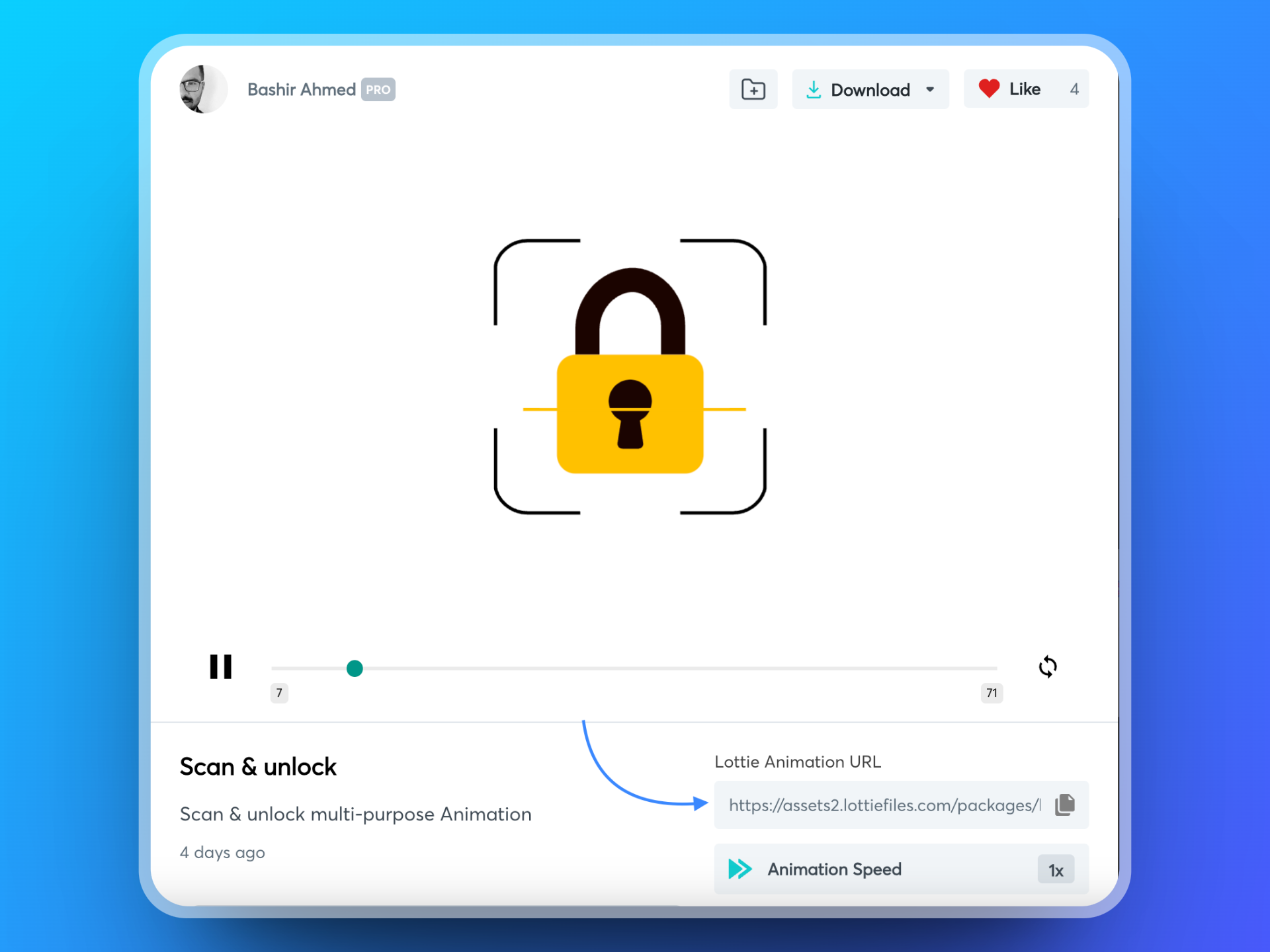
Either way, you'll need a URL for the JSON file, either host it yourself or grab the hosted URL from LottieFiles.
Embed it on Squarespace
Step 1: Add the Lottie player script
Inject the LottieFiles web component once, site-wide. In Squarespace, go to Settings → Advanced → Code Injection, and paste this into the HEADER field:
<script src="https://unpkg.com/@lottiefiles/lottie-player@latest/dist/lottie-player.js"></script>
Step 2: Generate the animation HTML
Use the Lottie Web Player page: paste your JSON URL, adjust the options, and copy the generated <lottie-player> code. Useful attributes:
- Play mode:
bounceplays forward then reverses, looping back and forth. - Direction: play forwards or backwards.
- Background: set a colour (e.g.
#FFFFFF) ortransparentto show your page behind it. - Speed:
1is default; use0.5for half speed or2for double. - Loop: repeat indefinitely (omit to play once).
- Controls: show a play/pause seeker bar (usually off for decorative animations).
- Hover: play only on mouse hover.
- Autoplay: start automatically on load.
Step 3: Drop it into a Code Block
On the page you want it, in edit mode click Add Block → Code, paste the <lottie-player> snippet (you don't need to repeat the script tag from Step 1), uncheck Display Source, and apply. Tip: if it doesn't show in the editor, save and check the live preview.
Best practices
- Keep it light. Favour simple animations and small JSON files so they don't drag down your Core Web Vitals.
- Stay responsive. Make sure animations scale cleanly on every device, see our responsive design guide.
- Use them with intent. A little motion guides attention; too much distracts.
Troubleshooting
- Animation not showing? Re-check the JSON URL and confirm the script in Step 1 is in Code Injection. Some animations only appear on the published page, not in the editor.
- Interactivity off? Regenerate the code on the Lottie Web Player so it reflects your latest settings.
Wrapping up
Even without native support, Lottie animations are a simple way to bring a Squarespace site to life, more engaging, more memorable, and still fast. (On the custom-coded sites we build, Lottie and scroll interactivity are even easier to wire in.)
If you'd like a site that stands out, see our website design service, or book a strategy call and let's build something that glides past the competition.